
How to Preview Your Email Rendering Before Sending
The Client Previews feature in Unspam renders your email campaign across over 50 real mailboxes, mobile devices, and desktop clients before you hit send. Email marketers, developers, and designers should use this feature to ensure their emails display correctly for every recipient, regardless of what app or device they use. Following this guide will allow you to generate pixel-accurate previews of your email in both light and dark modes to catch broken layouts before launch.
Why This Feature Matters
Email clients use different rendering engines to interpret HTML and CSS. An email that looks perfect in a web browser may appear broken in Outlook or unreadable in dark mode on an iPhone. Without testing, these layout issues reach your subscribers. Using Client Previews solves this by providing the following benefits:
- Catch rendering errors early: Identify missing CSS support, broken tables, or inverted dark-mode colors before sending a campaign.
- Save time: Test across 50+ environments simultaneously instead of maintaining a drawer of physical test devices or managing dozens of manual test accounts.
- Ensure brand consistency: Verify that colors, spacing, and typography remain consistent regardless of the recipient's software.
How the Feature Works
Unspam provides two methods to generate previews:
- Paste HTML: Paste raw code directly into the browser for immediate rendering.
- Send an Email: Send a live test email from your sending platform to a unique Unspam address.
Once the system receives your code or email, it opens it in actual copies of 50+ clients and captures a screenshot of exactly what each one displays.
Before You Start
To complete this task, you need:
- An active Unspam.email account.
- An email campaign ready to test.
- Access to your raw HTML code, OR the ability to send a test email from your email service provider.
Common Use Cases
- Checking emails before launch: Confirm a newsletter layout holds up across Gmail, Outlook, and Apple Mail.
- Reviewing mobile layouts: See how columns stack and text reflows on various iPhone and Android screens.
- Testing dark mode: Open the dark-mode preview to catch inverted colors or logos that vanish on a dark background.
- Outlook debugging: Compare Outlook 2016, 2019, and Office 365 renders side by side to find where the Word engine breaks a design.
Step-by-Step Instructions
Navigate to the Client Previews page in Unspam to begin. Choose the method that best fits your workflow.
Method 1: Paste HTML
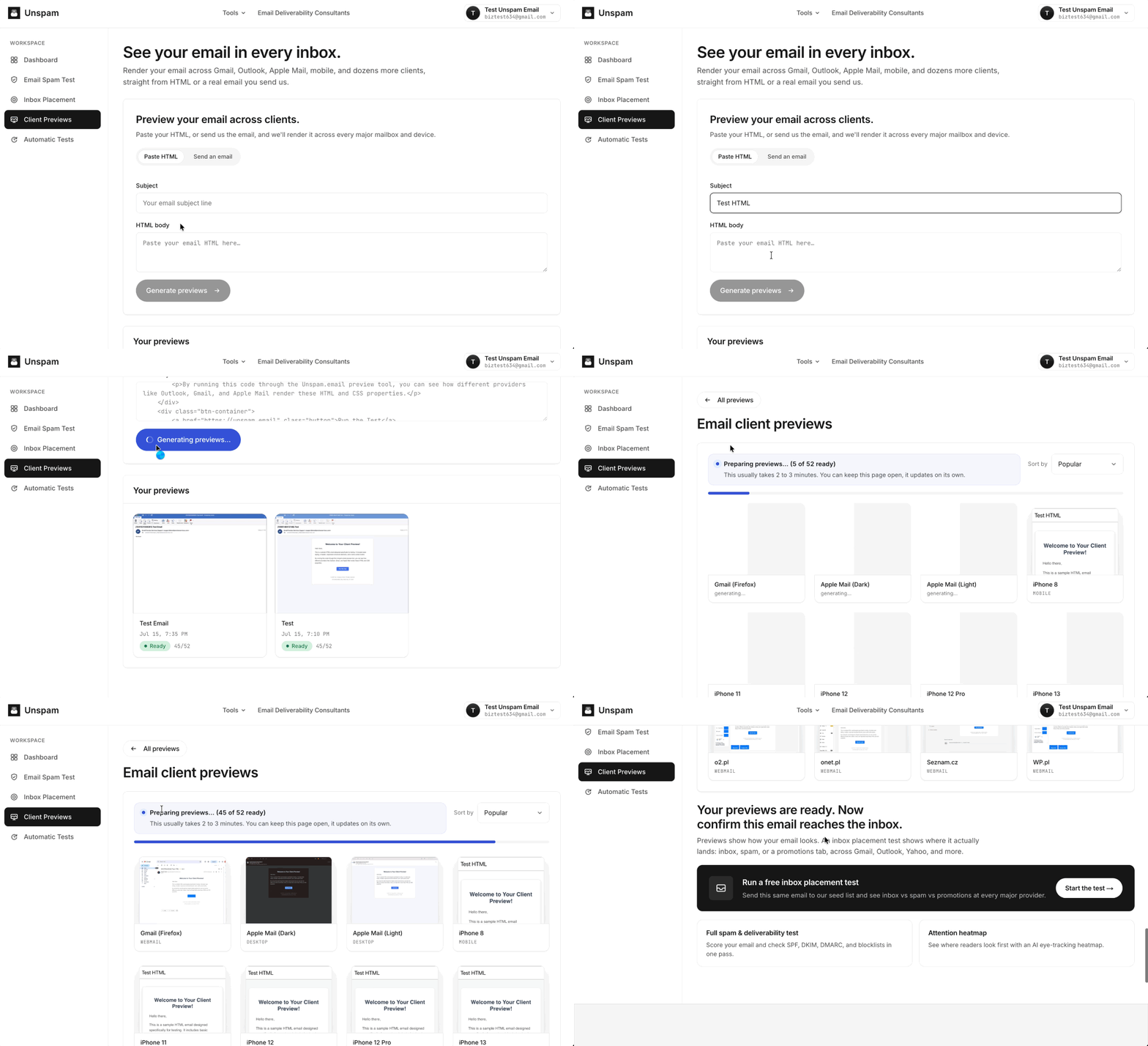
- Select the Paste HTML tab on the Client Previews page.
- Type a subject line into the Subject field.
- Paste your raw email code into the HTML body field.
- Click the Generate previews button below the text area.
- The screen will process the code. You will then be redirected to the Email client previews page, which displays a grid of screenshots showing how your email renders across various clients.
Method 2: Send an Email
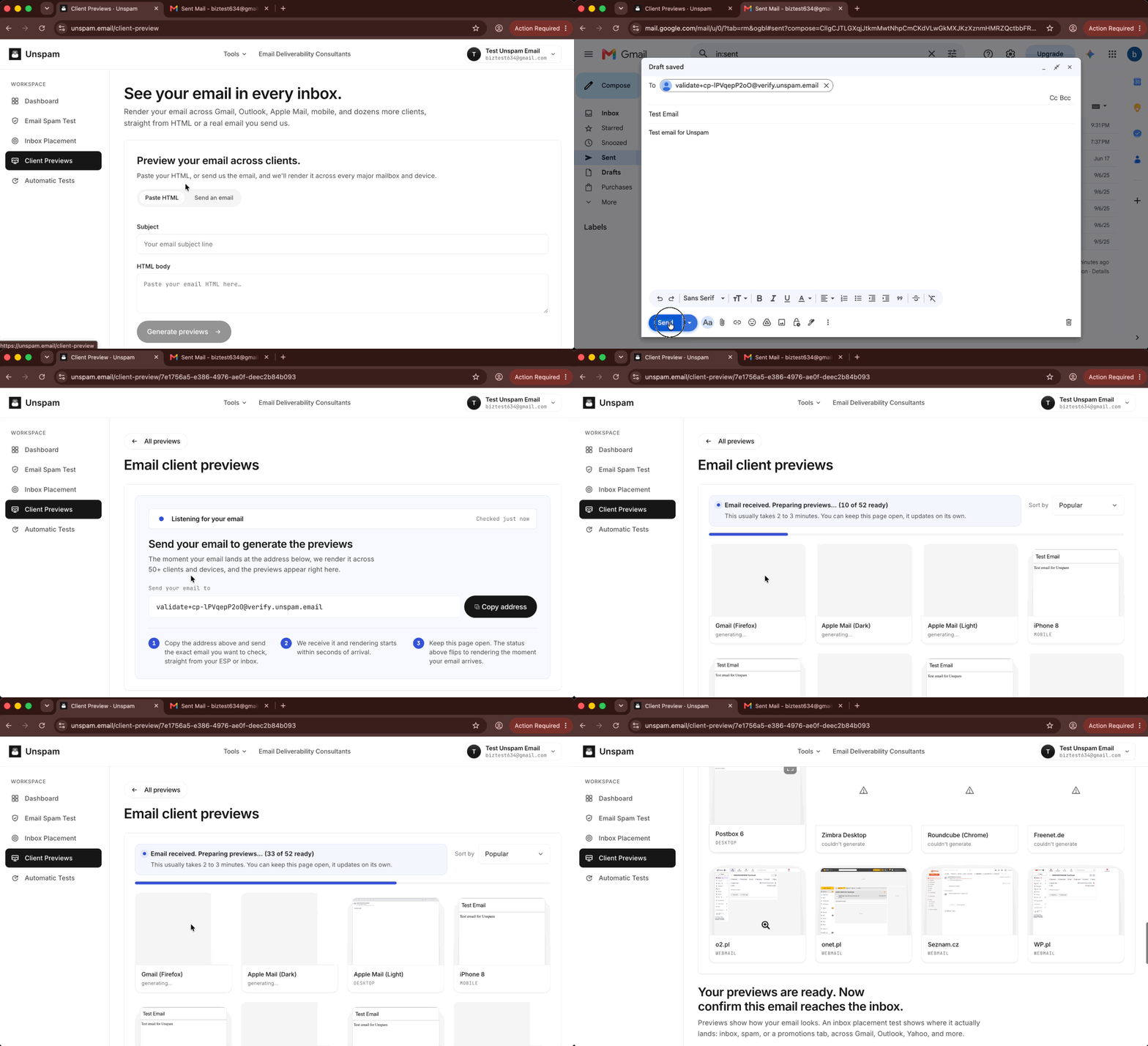
- Select the Send an email tab on the Client Previews page.
- The screen displays a unique test address under the heading "Send your email to". Click the Copy button (e.g.,
preview-abc123xyz@inbox.unspam.email). - Open your email service provider or inbox, paste the copied address into the recipient field, and send your test email.
- Keep the Unspam page open. The screen will display a "Listening for your email" status, indicating it is checking for your email every few seconds.
- The system receives your test email, renders it, and displays the client screenshots.
Viewing Your Preview Results
After completing either method, you will land on the Email client previews results screen.
- Review the Summary: Look at the top left of the page. It displays completion metrics, such as "45 of 52 previews ready, 7 failed".
- Sort the Previews: Use the Sort by dropdown menu (defaulted to "Popular") to organize the thumbnails based on your needs.
- Analyze the Grid: Scroll through the thumbnail grid. Each image includes a label identifying the client name and device category. The grid includes webmail (e.g., Gmail, Yahoo, AOL), mobile devices (e.g., iPhone 13, iPad Air, Android 9), and desktop clients (e.g., Apple Mail, Outlook 2019, Thunderbird).
- Check specific variants: Pay close attention to clients labeled "(Dark)" or
"Dark Mode"to review your dark mode compatibility. - Review Failed Renders: If a specific provider experienced a timeout, its placeholder card will state "couldn't generate" (e.g.,
Zimbra Desktop couldn't generate).
What browsers and Devices we use in our previes?
Email Preview functionality
Email Previews let you see how your email will appear across a range of supported desktop, web-based, and mobile email applications before you send it. This helps you identify potential differences in layout, styling, fonts, spacing, images, or other elements that may render differently depending on the email client or device.
The available preview options are shown in the Supported Email Application Inventory and include clients such as Apple Mail, Outlook, Gmail, Yahoo! Mail, Office 365, and selected iPhone, iPad, and Android environments.
Mobile email previews
Outlook Mobile is not currently available as a separate, dedicated client in Client Previews.
For mobile testing, previews use:
- iOS: the native Apple Mail app
- Android: the Gmail app
This is why mobile previews are listed by device or operating system, such as iPhone 11, iPhone 13, or Android 9, rather than as “Outlook iPhone” or “Outlook Android.”
At this time, there is no specific mobile preview option that represents Outlook on iPhone or Android. If your audience primarily uses Outlook Mobile, keep in mind that the available iOS and Android previews can provide a useful indication of mobile rendering, but they should not be considered an exact Outlook Mobile preview.
Limitations or Things to Know
- Third-Party Timeouts: Because the system tests against live environments, a specific provider might experience a temporary timeout resulting in a "couldn't generate" message.
Best Practices
- Test both methods: Use "Paste HTML" during active coding for rapid feedback, and use "Send an email" for the final quality assurance check before launch to ensure your ESP didn't alter the code.
- Prioritize your audience's clients: Focus your review on the specific email clients your subscribers use most often.
- Always check Dark Mode: Ensure transparent images and text colors render visibly against dark backgrounds, particularly in Outlook and Apple Mail.
Troubleshooting
Issue: A specific preview thumbnail displays "couldn't generate".
- Possible Cause: The remote email provider experienced a temporary timeout or connection issue during the test.
- Resolution: Wait a few minutes and run the test again by generating a new preview.
Issue: The "Listening for your email" screen does not update after sending a test email using Method 2.
- Possible Cause: Your sending platform has delayed the send, or the test address was copied incorrectly.
- Resolution: Verify the address in your sending platform matches the address on the Unspam screen. Check your outgoing queue to confirm the message was dispatched.