
Set up DMARC monitoring and read your reports
DMARC monitoring collects the aggregate reports that mailbox providers like Gmail, Outlook and Yahoo send about mail using your domain. Unspam reads each report and groups the traffic into named sending sources. It also tells you when your domain is ready for a stricter DMARC policy.
Setup is one DNS record. Your mail flow does not change, and neither does your current policy.
Before you start
- Plan: DMARC monitoring is part of the Custom plan. Each domain costs $6 per month, and your first domain is free. The Free plan does not include it.
- Access: you need to be able to edit DNS records for the domain.
To add more domains than your plan allows, raise the DMARC monitoring quantity on the pricing page.
Step 1: Add your domain
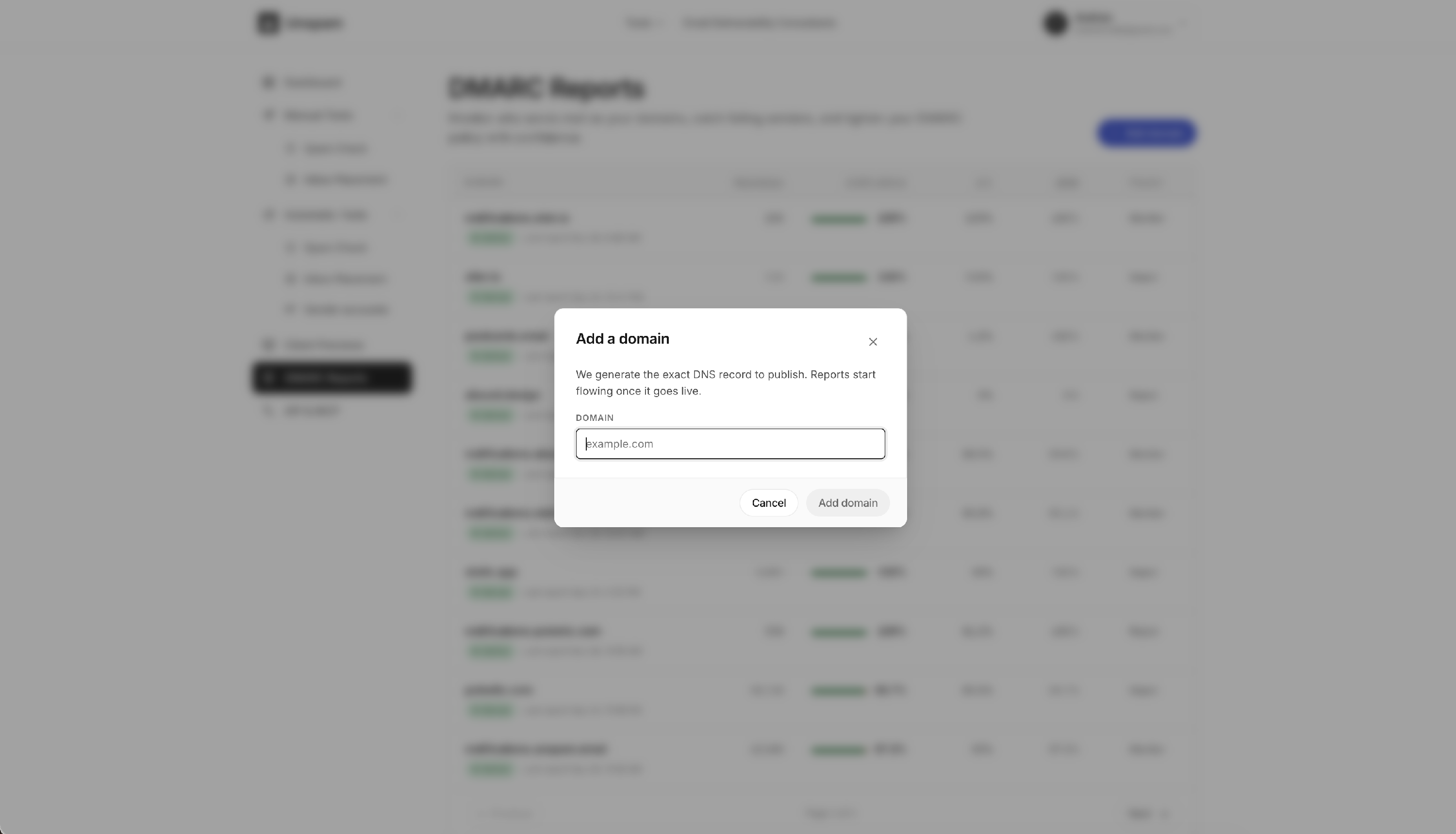
- Open DMARC Reports in the app sidebar.
- Click Add domain.
- Enter the domain, for example
example.com, and click Add domain.
Unspam generates the exact DNS record to publish. What you see depends on your current setup:
| Your DNS today | What Unspam shows you |
|---|---|
| No DMARC record | A new record to publish. |
| A DMARC record already exists | Your existing record with our reporting address added. Replace your current record with this value. Your policy and any other report recipients stay as they are. |
| Your record already includes our address | Nothing to publish. |
We put our reporting address first in the rua list, because some mailbox providers only send reports to the first two addresses listed.
Step 2: Publish the DNS record
At your DNS provider, create or update a TXT record with the host and value shown in Unspam. Each field has a Copy button. The host is _dmarc .
Your domain must have exactly one _dmarc TXT record. If there are two, mailbox providers ignore DMARC for the domain completely, and Unspam flags it.
Step 3: Verification
Unspam checks your DNS automatically and verifies the domain as soon as the record appears. To check straight away, open the domain and click Verify now. DNS changes can take a few minutes to propagate.
Step 4: Wait for the first reports
Mailbox providers usually send their first aggregate reports 24 to 48 hours after verification, and then usually once a day. The domain page updates automatically when reports start arriving.
The most recent day or two of data is often incomplete, because each provider reports on its own schedule.
Reading your dashboard
Domain list
The DMARC Reports page lists every domain with figures for the last 30 days:
- Messages: mail that providers reported for the domain.
- Compliance: the share of that mail that passed DMARC.
- SPF aligned: the share where SPF passed and its domain matched the From domain.
- DKIM aligned: the share where DKIM passed and its signing domain matched the From domain.
- Policy: what your record asks providers to do with failing mail:
- Monitor (
p=none) only reports it. - Quarantine (
p=quarantine) sends it to spam. - Reject (
p=reject) blocks it.
- Monitor (
DMARC passes when SPF or DKIM aligns; it doesn't need both. A low SPF figure only matters if DKIM is also low, and the same goes the other way.
Domain statuses:
| Status | Meaning |
|---|---|
| Pending DNS | Waiting for the record to be published and verified. |
| Active | Reports are being collected. |
| Attention needed | Something in the DMARC record needs a look. The domain page shows what we found. |
| Paused | Reports are not collected while the domain is paused. |
Domain overview
Open a domain to see its details for any date range. The ranges run from today through the last year, plus all time and custom dates.
- Compliance summary: message totals, compliant vs failing mail, days with data, and a breakdown by alignment:
- DKIM and SPF both aligned
- DKIM aligned only
- SPF aligned only
- Neither aligned
- It also shows what mailbox providers did with the mail.
- Daily volume: a chart of messages per day by DMARC result. Policy changes are marked on the chart.
- Policy readiness: whether you can move to Quarantine or Reject yet (see below).
- Sending sources: every service that sent mail as your domain in this period.
Sending sources
Unspam groups reported IP addresses into sources.
Categories:
- Email service provider
- Own infrastructure
- Forwarder
- Suspected spoofing
- Unknown
Statuses:
- Compliant
- Partially failing
- Failing
- Unauthorized
Open a source to see:
- Why mail from this source fails: each fully failing combination of From domain, DKIM and SPF result, with the cause and how to fix it. The causes are:
- No DKIM signature
- Broken DKIM signature
- DKIM not aligned
- SPF not aligned
- Not authenticated
- Sending IPs: every address the source sent from. Open an address for its daily volume and every SPF and DKIM result reported for it.
- Your annotations: mark the source as legitimate, and give it a label (for example "Marketing ESP") and a note.
Policy readiness
For each domain, Unspam checks whether you can safely move to p=quarantine or p=reject . It lists what stands in the way:
- Not enough data yet: too few days of reports.
- Compliance below the threshold.
- A failing source: a service sending mail that fails DMARC.
- Unreviewed traffic: mail from a source nobody has identified yet.
To clear a blocker, fix the source's authentication or mark the source as legitimate. When nothing blocks a stricter policy, the check shows Ready.
Note on subdomains: if your record includes sp=none , your subdomains stay at p=none even after you tighten the main domain's policy. To change that, remove the tag so subdomains follow p , or set sp to the policy you want them on.
Raw aggregate reports
On the domain page, click View reports to see every report received, newest first, grouped by reporter. The badge beside each reporter shows how far we trust its data.
Open a report to see:
- the reporting organization and period
- the policy you published
- each record's source IP, message count and what the provider did with the mail
- the aligned DKIM and SPF results
- the individual signatures behind them
Weekly email summary
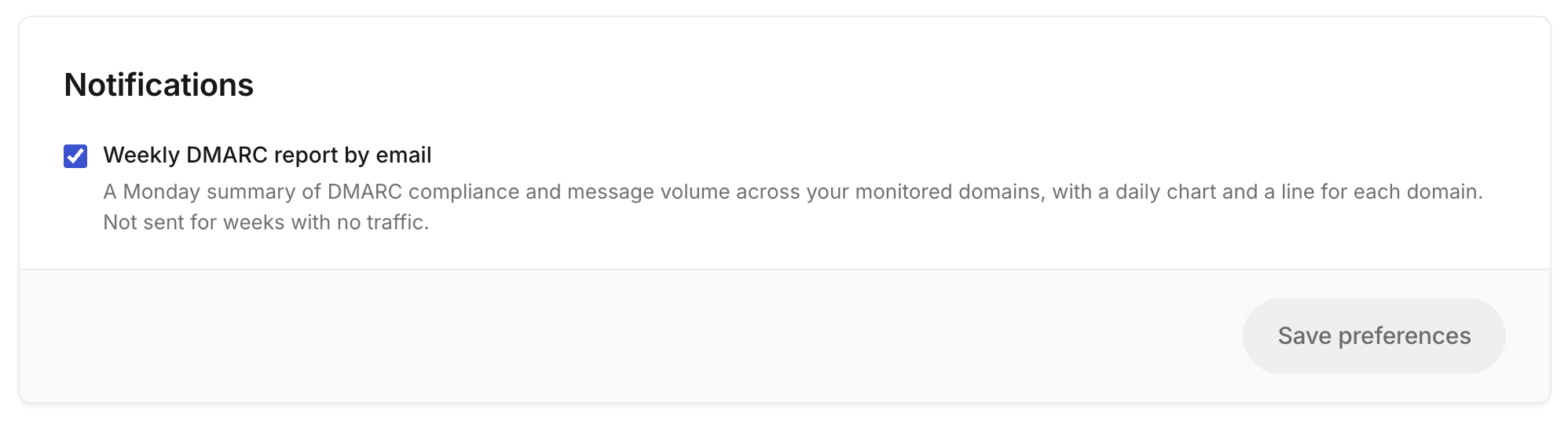
Every Monday, Unspam emails you a summary of the previous 7 days across all your monitored domains. It includes:
- the share of messages that passed DMARC
- compliant and failing message counts
- a daily volume chart
- each domain's compliance rate
The summary is on by default and isn't sent for weeks with no traffic. To turn it off, go to your account settings, open Notifications and switch off Weekly DMARC report by email.
Data retention
Raw report records (per-IP detail) are kept for 12 months. Message counts and compliance figures come from daily totals that go back further, so long date ranges still show them. They just have no per-IP detail for dates older than 12 months.
Removing a domain
Open the domain, go to Settings, and click Delete domain. Monitoring stops immediately, and every report received for that domain, including the archived report files, is permanently deleted. This can't be undone.
API and AI assistants
DMARC monitoring is available over the REST API through eight endpoints. They let you:
- register a domain
- read the record to publish
- verify it
- list aggregate reports
- open a single report down to its per-source records
The same operations are tools on the MCP server, so an AI assistant can add a domain or summarize last week's senders for you.
Troubleshooting
No reports after 48 hours.
- Check that the domain shows as verified.
- Check that the
_dmarcrecord still contains our reporting address. The domain's Settings page shows the record we generated. - If your record lists more than two
ruaaddresses, keep ours among the first two.
"Your reporting address was removed"
Our address disappeared from your DMARC record, so providers will stop sending reports to us. Publish the record shown on the domain page again to resume monitoring.
"More than one _dmarc TXT record was found"
Delete the extra records so exactly one remains. Until then, mailbox providers ignore DMARC for the domain.
"Your plan's DMARC domain limit is used up"
Raise the DMARC monitoring quantity on the pricing page.
Want to look at a single report without monitoring?
Use the free DMARC report analyzer. To check your record, use the DMARC checker.